
 |
||
 |
||
 |
| [ english ] | [ deutsch ] | [ italiano ] |
|
|
|||||||||||||
|
| Home > MLCad > MLCad language file | Last update: 16.02.2013 |
|
||||||||||||||
|
||||||||||||||
In order to run the program in a language different from its native english you need a .dll file (dynamic link library) where all the information has been coded. Those localized versions are put together and supported by volunteers: at the time MLCad "speaks" French, Czech , Japanese, Polish, Dutch, Spanish, German and Italian. Some of these add-ons can be found at MLCad's homepage, some are hosted by the person who translated the program into his/her mother tongue. I translated the interface into Italian and also support the German and English version. The procedure to change the interface in one of the supported languages is the same:
|
|
|||||||||||||
|
(The following screenshot shows all menus and dialogs in one edited image).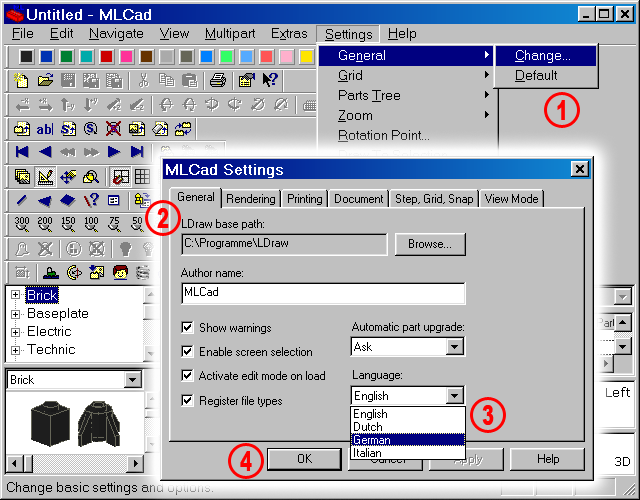 |
||||||||
| 1. | Select the Settings menu, the General tab, then Change... (Settings > General > Change...). | ||
| 2. | This will pop up the MLCad Settings dialog. You should already see the General tab. If not please click on it. | ||
| 3. | Choose the desired language in the Language: drop down box. | ||
| 4. | Confirm your choice and exit the Settings dialog by clicking the OK button. | ||
(The following screenshot shows all menus and dialogs in one edited image).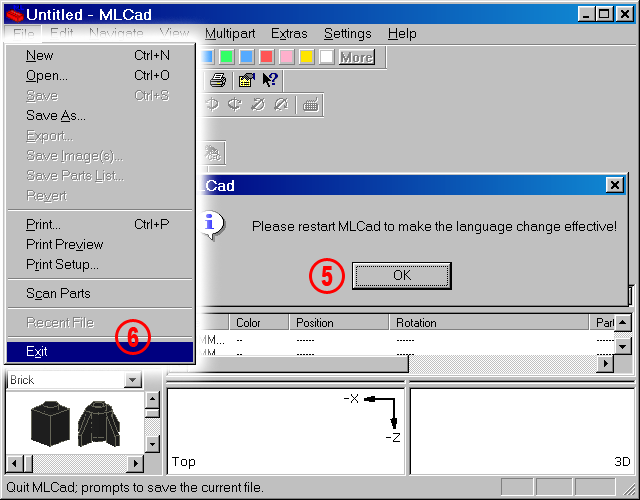 |
|
| 5. | The dialog window will be replaced by a new dialog telling that you have to close the program and restart it to make the change effective. Click OK to return to MLCads main window. NOTE! You might continue with your work. The changing will only apply next time you start the application. To restore the default english language or switch to another language you have to repeat the whole procedure. (It is also possible to run several programs at the same time, each in a different language! Just launch a new version without previously shut down the main window). |
 |
|||
| 6. | Close MLCad via File > Exit or click the x button in the top right-hand corner of the window and re-launch the program. |
|
|||
| LEg GOdt! | |||||
|
||||
 |
Home | LDraw | MLCad | LSynth | LDView | Instructions | Wallpapers | Space | Western | Miscellaneous | About me | Sitemap | Contact |  |
||
| All content is provided as is, with no warranty stated or implied regarding the quality or accuracy of any content on or off this site. LEGO® is a trademark of the LEGO Group of companies which does not sponsor, authorize or endorse this site. |
||||


