
 |
||
 |
||
 |
| [ english ] | [ deutsch ] | [ italiano ] |
|
|
|||||||||||||
|
| Home > MLCad > Tutorial: Manual setup - Page 1 of 3 | Last update: 02.01.2016 |
|
||||
| Page 1 2 3 Next> |
|
||||||||||
| This tutorial will teach you how to set up manually a simple LDraw system with the MLCad editor and the LDraw Parts Library. Furthermore it will show you tips and tricks and help with troubleshooting problems you might encounter. The tutorial is based on the LDraw Parts Library 2015-01 and MLCad 3.5. Follow this tutorial ONLY if the LDraw All-In-One-Installer has failed or won't run on your OS. This is most true if you are still using Windows 95, 98, ME, NT Ver 4, 2000, or XP below SP2. Navigate to the Parts > Latest Parts page at LDraw.org and download the following file:
NOTE! The LDrawXXX in the file's title stands for the version number of the LDraw Parts Library. Go also to MLCad's home page and download the file named:
The tutorial assumes that both files LDrawXXXX.exe and MLCad_V3.50.zip have been downloaded to your hard disk. The tutorial is grouped in two sections: Installing the LDraw Parts Library Installing MLCad |
|
|||||||||
Installing the LDraw parts library |
||||||||||
| The LDraw parts library is a collection of LDraw-format CAD files representing many of LEGO bricks produced. The parts library is required to use any of the LDraw CAD programs such as MLCad, LPub or LDView. | ||||||||||
 |
|
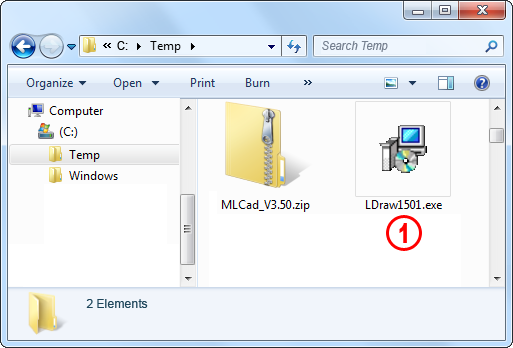
| 1. | First we are going to install the LDraw Parts Library. Either double click the executable LDrawXXXX.exe setup file or select Open from the contextual menu. |  |
|
 |
|
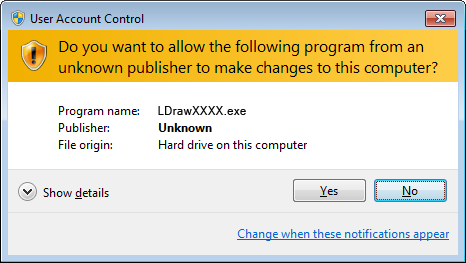
| NOTE: Running the setup program on Windows Vista or higher and based on the settings in the UAC (User Account Control) you might get the above warning. Select Yes to proceed with the installation. Please read http://en.wikipedia.org/wiki/User_Account_Control what this warning is all about. | ||
 |
|
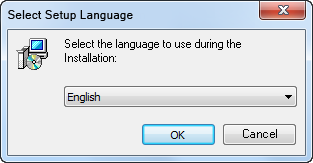
| NOTE: You might also get a dialogue asking for your preferred language of the installer. Select English from the drop down box and confirm you choice by hitting the OK button. | ||
 |
 |
| 2. | There haven't yet been any compatibility problems reported with other applications (including programs of the LDraw System of Tools) running while installing the library; nonetheless it is a good idea to follow this recommendation. Click the Next > button and proceed to the next dialogue only AFTER you have saved your work and closed all open programs. | ||
 |
|
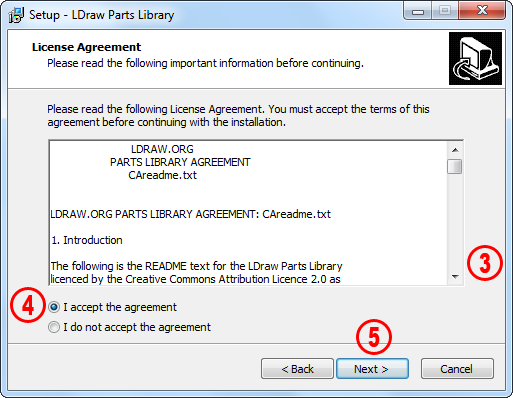
| 3. | Read the License Agreement for the LDraw Parts Library by scrolling down and understand the legal terms of the license. After installation you can find the Legal Code (CAlicense.txt) as well as the easy-reading text shown in the above dialogue (CAreadme.txt) in the library's root folder or on the LDraw.org web site. | ||
| 4. | After reading and agreeing with the license select I accept the agreement to proceed with the installation or press Cancel to abandon the setup. | ||
| 5. | The Next > button will only become accessible after you've agreed to the license terms. Click Next > and go to the next screen. | ||
 |
|
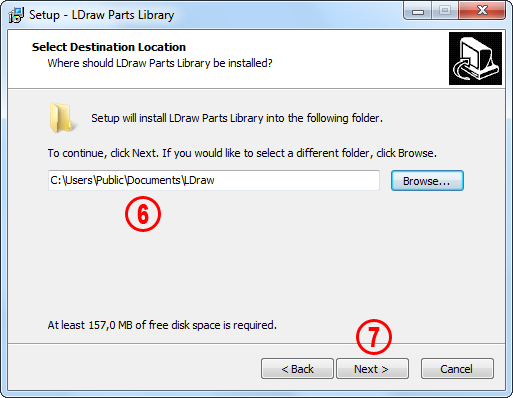
| 6. | It is recommended that you install the library in the proposed C:\Users\Public\Documents\LDraw folder. Change the location only if you're an experienced user. | ||
| 7. | Click the Next > button and proceed to the next dialog. | ||
|
 |
||
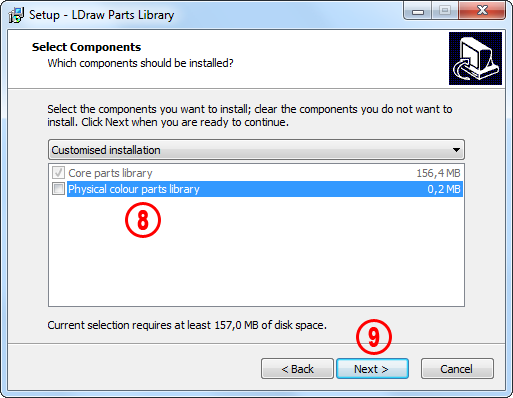
| 8. | The type of installation chosen from the drop down box allows you to install the following segments of the official LDraw library. | |||||||||||||||
|
|
|||||||||||||||
For broadest use I recommend installing:
|
||||||||||||||||
| 9. | Click the Next > button and proceed to the next dialog. | |||||||||||||||
 |
|
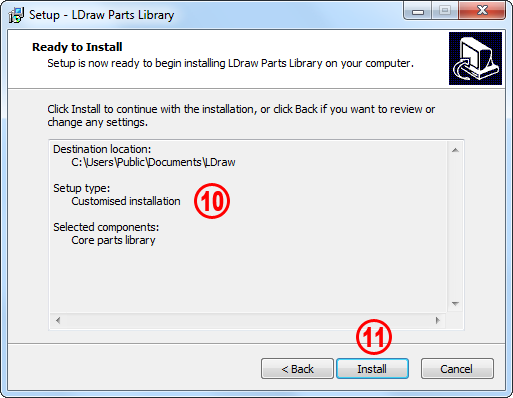
| 10. | Check the summary of your settings and... |
|
|||
| 11. | Click the Install button to start copying the files. |
| Page 1 2 3 Next> |
|
||||
 |
Home | LDraw | MLCad | LSynth | LDView | Instructions | Wallpapers | Space | Western | Miscellaneous | About me | Sitemap | Contact |  |
||
| All content is provided as is, with no warranty stated or implied regarding the quality or accuracy of any content on or off this site. LEGO® is a trademark of the LEGO Group of companies which does not sponsor, authorize or endorse this site. |
||||